
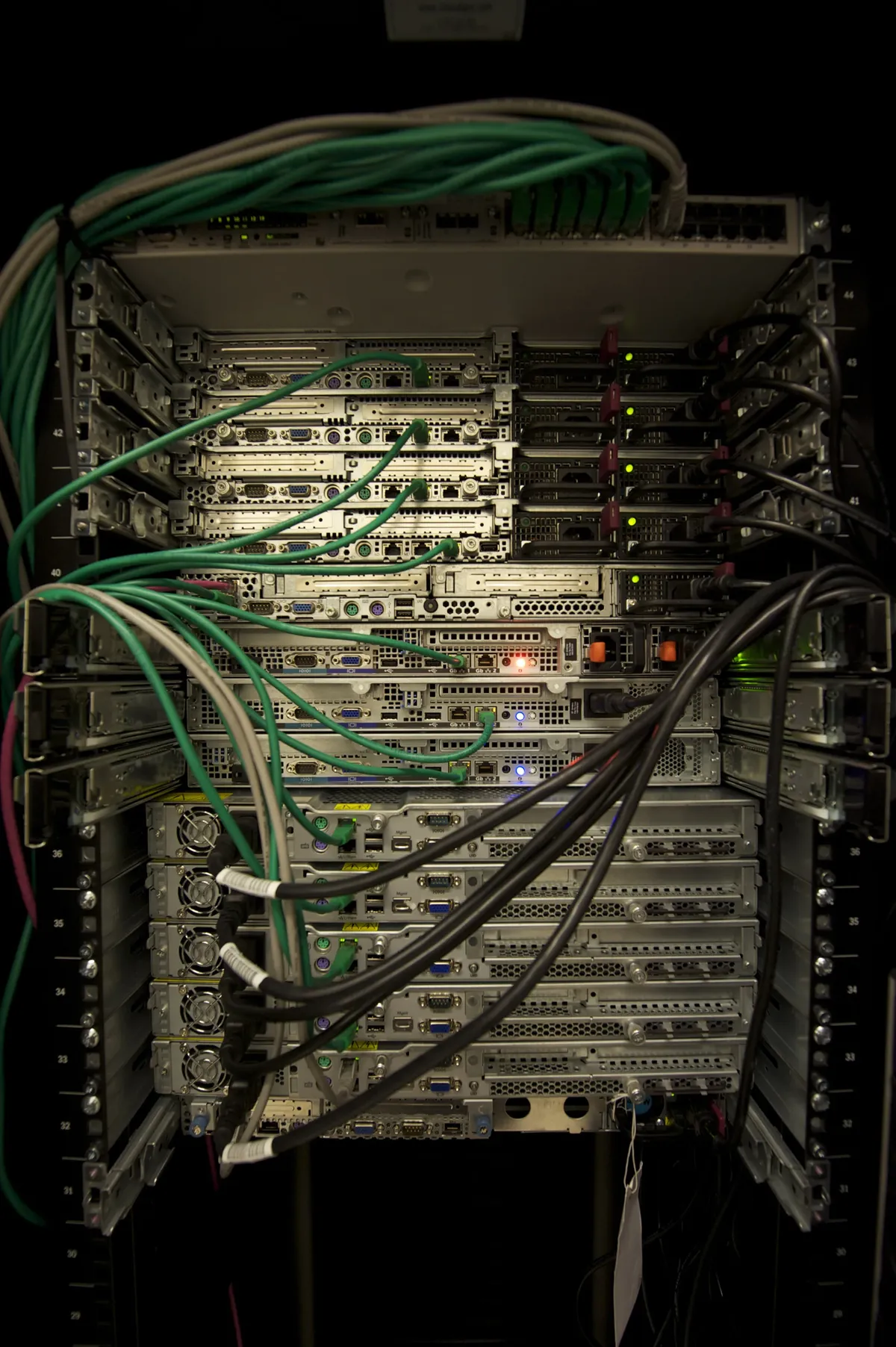
Why Raspberry Pi as a Home Server?
A Raspberry Pi makes an excellent low-power, always-on home server. Running 24/7 costs just a few euros per year in electricity, while providing file storage, media streaming, network services, and more.
Home Server Use Cases
- File Server: NAS, Samba/NFS shares
- Media Server: Plex, Jellyfin, Kodi
- Network Security: Pi-hole ad blocking, VPN
- Home Automation: Home Assistant hub
- Cloud Storage: Nextcloud, personal cloud
Recommended Hardware

| Component | Recommendation |
|---|---|
| Raspberry Pi | Pi 4 (4GB+) or Pi 5 |
| Storage | SSD via USB 3.0 or NVMe (Pi 5) |
| Power | Official 5V/3A (Pi 4) or 5V/5A (Pi 5) |
| Case | Case with fan + heatsinks |
| Network | Ethernet (Gigabit) recommended |
Storage Setup
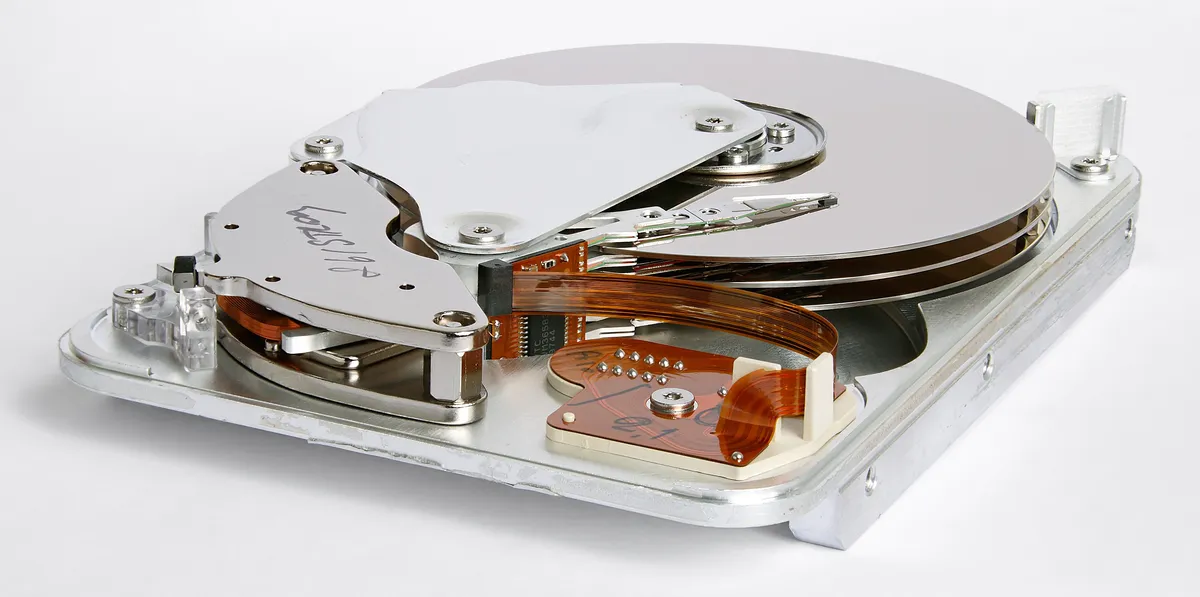
For reliable server storage, use an external SSD or HDD via USB 3.0. SD cards are not suitable for heavy read/write workloads.
Storage Tips
- Use USB 3.0 ports (blue) for best speed
- Use a powered USB hub for multiple drives
- Format as ext4 for Linux, NTFS for Windows sharing
- Consider RAID/mirroring for important data
# Auto-mount external drive
sudo mkdir /mnt/storage
sudo mount /dev/sda1 /mnt/storage

# Add to /etc/fstab for boot mount
UUID=your-drive-uuid /mnt/storage ext4 defaults,noatime 0 2
Network Configuration
For a home server, use static IP so other devices can always find it:
# Edit /etc/dhcpcd.conf
interface eth0
static ip_address=192.168.1.100/24
static routers=192.168.1.1
static domain_name_servers=192.168.1.1 8.8.8.8
Popular Server Services
Samba File Sharing
Windows-compatible network shares
sudo apt install samba
Pi-hole
Network-wide ad blocking
curl -sSL https://install.pi-hole.net | bash
Jellyfin
Free media server (Plex alternative)
Docker: jellyfin/jellyfin
Nextcloud
Private cloud storage
Docker: nextcloud
Home Assistant
Smart home hub
Docker: homeassistant/home-assistant
WireGuard VPN
Secure remote access
sudo apt install wireguard
Security Checklist
Essential Security Steps
- Change default password
- Enable SSH key authentication, disable password
- Keep system updated:
sudo apt update && sudo apt upgrade - Configure firewall (ufw)
- Install fail2ban for brute force protection
- Use HTTPS for web services
Build Your Home Server
Browse our Raspberry Pi collection for boards, cases, and accessories.
Want containerized apps? See our Raspberry Pi Docker Guide.
Frequently Asked Questions
Which Raspberry Pi is best for a home server?
The Raspberry Pi 5 (8GB) is ideal for demanding servers with multiple services, Plex transcoding, or many users. The Pi 4 (4GB or 8GB) is excellent for most home server tasks including file sharing, light media streaming, and personal cloud storage. Choose Pi 5 if you need maximum performance or plan to run resource-intensive services.
Can Raspberry Pi run 24/7 as a server?
Yes, Raspberry Pi is designed for continuous operation and can run 24/7 reliably. Use a quality power supply, ensure adequate cooling (especially for Pi 5), and consider a UPS for power protection. Use an SSD instead of microSD for better longevity. Many Pi servers run for years without issues.
How much does it cost to run a Raspberry Pi server continuously?
A Raspberry Pi 4 draws about 3-6W, costing approximately €15-20/year in electricity. A Pi 5 draws 3-12W, costing €20-30/year. This is significantly cheaper than traditional servers (100-300W) which cost €200-600/year to run continuously.
Should I use microSD or SSD for my Pi server?
For servers, an SSD is strongly recommended. SSDs are 5-10x faster, more reliable, and better suited for 24/7 operation. MicroSD cards can work but may wear out faster under constant write operations. Boot from USB SSD for best performance and reliability.
How do I access my Raspberry Pi server when away from home?
Use WireGuard or OpenVPN to create a secure VPN connection to your home network. Alternatively, configure port forwarding for specific services (less secure) or use a service like Tailscale for zero-configuration remote access. Always use strong passwords and consider fail2ban for SSH protection.